
How to Download Offline Google Maps For Travel

We’ve been using downloaded maps from Google for years now – it’s something that takes just a minute or two and has been so helpful as we’ve traveled throughout France, or around the world to spots like Morocco, Vietnam, Colombia, or Costa Rica.
In this guide, we go over exactly how to download offline maps from Google, and why it’s such a useful tool.


Why (and When) You Should Download Offline Google Maps
Downloading maps for offline use lets you view maps, pull up routes, and use full turn-by-turn navigation, even if you have zero data or cell service.
This is obviously helpful in remote areas like the countryside, mountains, or national parks, where service often drops. But honestly, it’s just as useful anytime you’re traveling internationally in cities and villages.
Cell service can be unpredictable abroad, and you don’t want to be in a situation where you really need directions and your map just won’t load.
I’ve had this happen more than once, where someone else in our group can’t get Google Maps to open, but I can because the map is already downloaded.
Now, lately, we’ve been using an e-SIM when traveling internationally, which gives us fast, affordable data without having to buy a local SIM card after landing. I’ve been very happy with our e-sim experiences.
👉This is my favorite e-sim company I always use when I travel internationally
Even with an e-SIM, though, I still download offline maps every time. It saves data, and you never know when coverage will drop.
Finally, if you’re on a flight without seat-back screens, you can use offline maps to see where you are and track your progress in the air. You’ll need to download the entire flight route for this to work.
How to Download Google Maps for Offline Use
Downloading offline maps is extremely easy and only takes a few minutes. Here is how to do it:
Step 1
Open up Google Maps, and click on your picture in the upper right hand corner:

Step 2
Next, select “Offline Maps” from the list of options:

Step 3
This screen will pop up and will include a list of all the maps you’ve already downloaded offline. Click on “Select Your Own Map.”
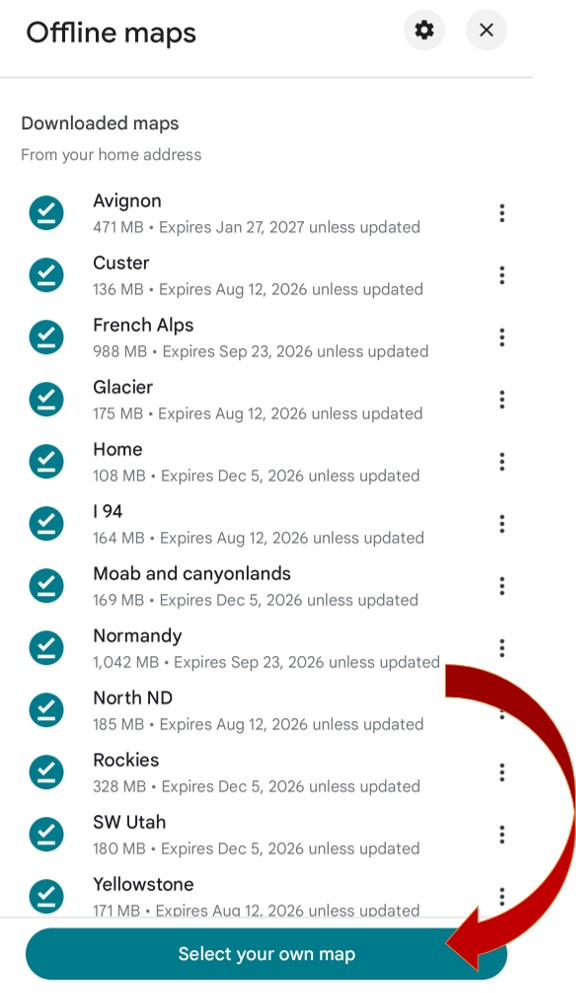
Step 4
This map and rectangle will then pop up. The rectangle is the area of the map that will be downloaded. You can move the rectangle to cover whatever area you like, and zoom in or out to fit your needs.
There is a maximum size that can be downloaded at once, though, so if you need a larger area than what the rectangle will cover, you’ll need to download a second map.

Note: You can see that the maps are definitely biased toward a North/South orientation. If you need a map that is more East/West, simply rotate your phone. This will usually be an even skinnier rectangle, but sometimes that’s the shape you need.
Step 5
Wait for the map to download. If your phone is on “Power save” mode, the map download will freeze if your screen turns off. I recommend turning that mode off to avoid this problem. You can track the progress or cancel at the bottom of the screen.
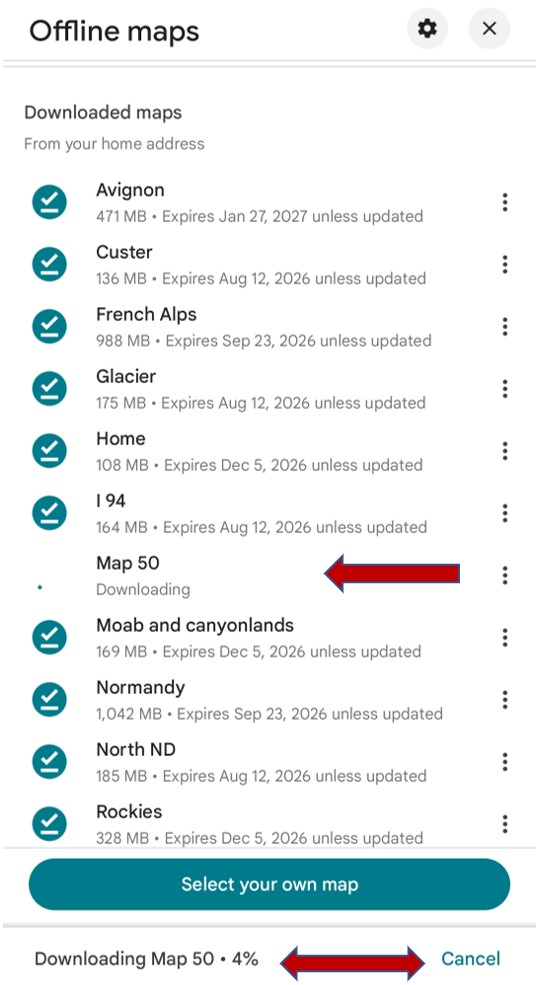
Step 6
Finally, you can click the 3 dots on the right-hand side to rename the map to your liking. This is also how you can delete a map. You can also start another map while the first one is still downloading.
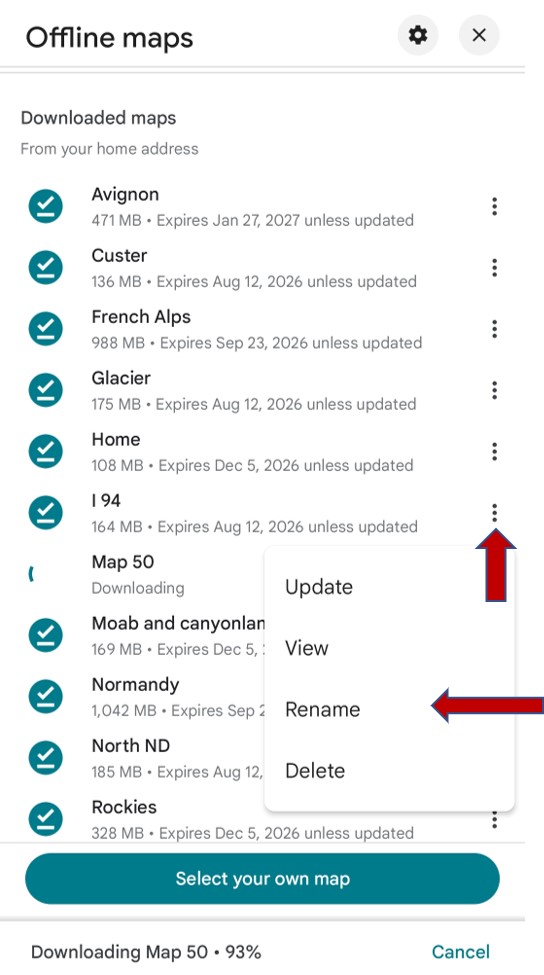
Ready to Use the Map?
So, now you’ve got your map downloaded and you’re at your destination. What do you need to do now to use the saved map?
The answer is, absolutely nothing!
Your offline map will automatically work when you’re looking at the downloaded area. You do not need to do anything else to “activate” it or select it for use when the time comes.
If you’ve downloaded multiple maps to cover a bigger area, the app will switch seamlessly between the two when you move between areas.
Final Thoughts
Downloading offline Google maps is an incredibly useful tool for traveling and hiking/adventuring in remote or foreign destinations, especially since this feature is so simple and free to use!
